
These are the steps to follow when you have received money using the deriv dp2p. in my other article, I shared about creating a sell order on deriv dp2p read about it here . Deriv using the escrow service to make sure that its users have a transparent transaction. Let’s get into the steps
If you prefer to watch a video here we go
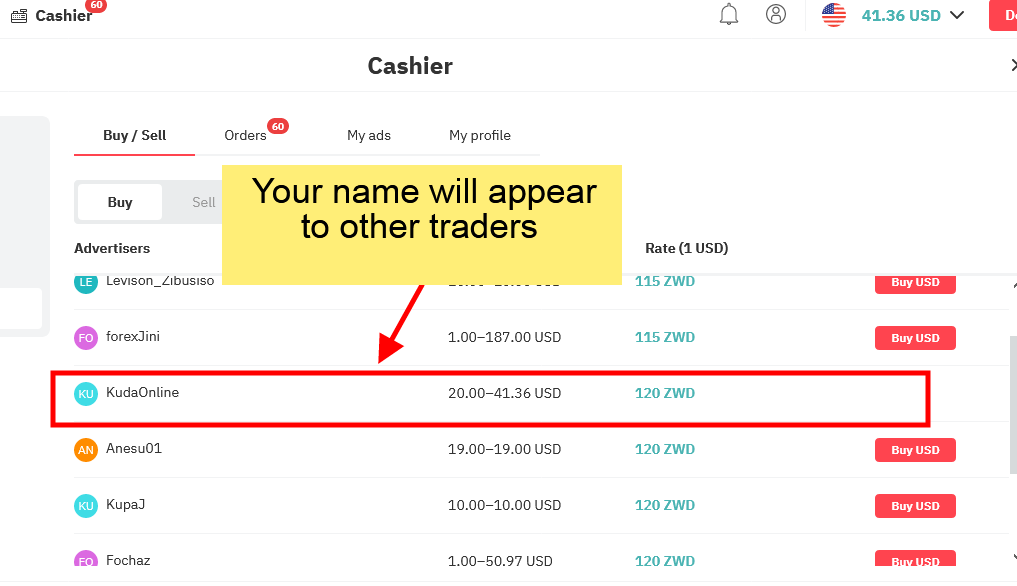
Step1- Getting listed in Sell section
I mentioned this earlier in the other article bout making a sell order. Once buyers see your order they will get your bank details and send you ecocash or zipit. Your task is to check your bank and confirm the order
Step 2-Check active orders
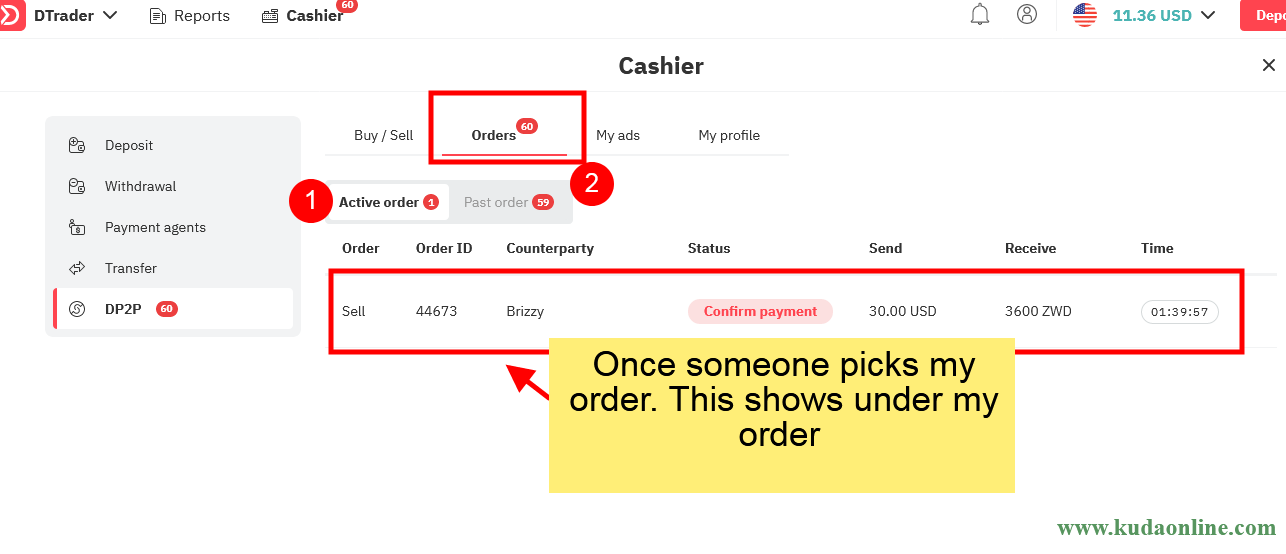
Go to the orders section you will notice active orders and past orders. The active order will show the pending transaction, In the case of the screen shot below it shows that the buyer made the payment because the status says confirm payment. if the buyer is yet to make the payment the status will say waiting for payment. Click on that order it will take you to step 3
Create an account on deriv.com
Step 3- Payment details page
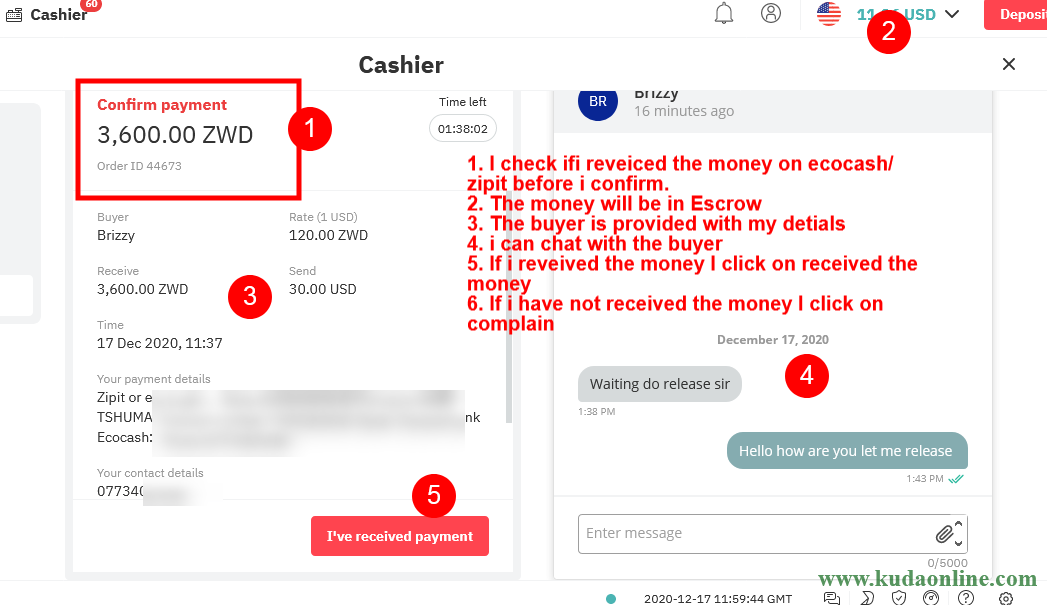
This page allows you to communicate with the buyer if there are any issues
- Shows the amount the buyer should send to your bank account or ecocash
- Shows the amount left in your account as the other money remains in escrow until the order is completed
- The transaction details
- Chatbox to chat with the buyer.
- Mark only if you have received the funds
- If you have not received the funds you can file a dispute and the deriv support will investigate the issue
Make money from deriv affiliate programme click here
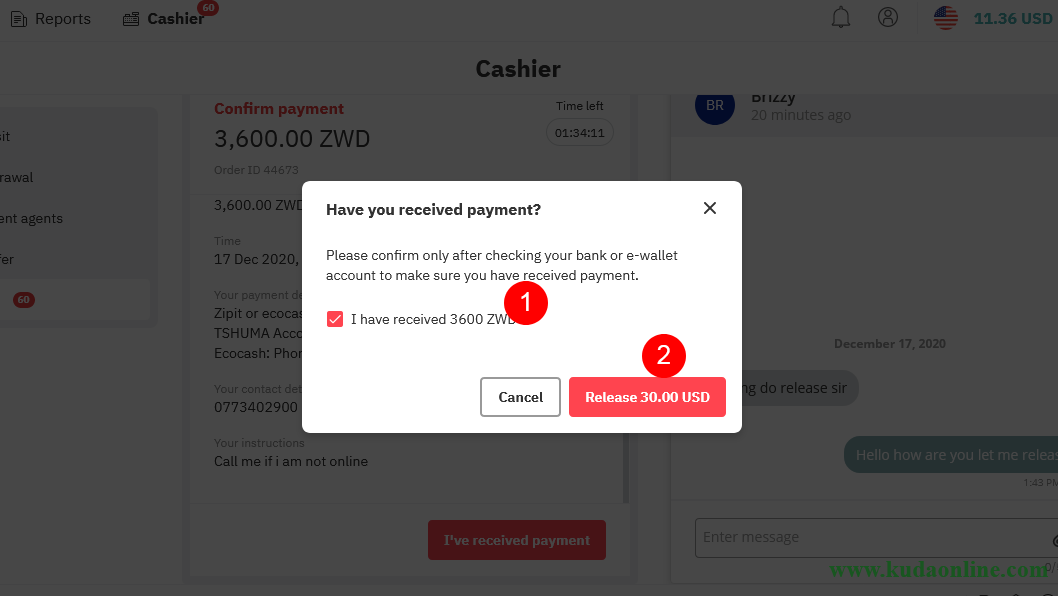
Step 4 – Payment confirmation & release funds
- Click I have received payment
- Release the funds
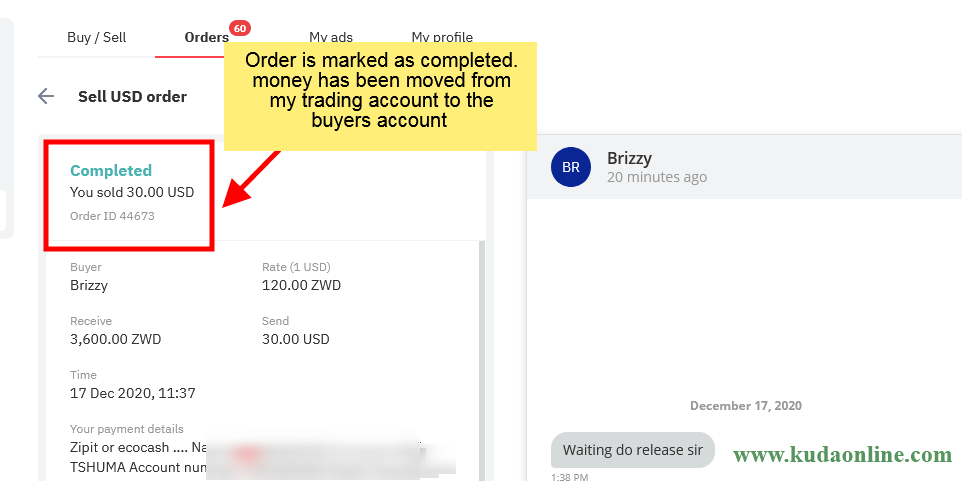
Step 5- Order complete
You will get to the page that shows that the order has been complete. This means the buyer has received their balance which was deducted from your deriv account and you have received money on ecocash or zipit. Both parties are happy.
Conclusion
If I missed anything in this article please leave a comment below. if you have been trading on deriv platform don’t ignore their affiliate program you can make a good amount of money from it.
Thanks Kuda. A question – am I able to clear past orders on dp2p?
I am not sure about this please try and get hold of deriv support on this
I need an airtm whatsapp group to join in Zimbabwe
https://chat.whatsapp.com/Ek97nUcez92AsaW7kBVPKk